Procreate Tutorial: How to Make a Stamp Brush + FREEBIE!

If you find yourself often using certain shapes on Procreate, it might save you time to simply create a custom stamp brush. This is especially useful if you have a particular design motif and want to replicate it in all your works.
Here’s how:
1. Open Procreate
2. Select any brush and proceed to draw a shape. I prefer to use the Outline Brush.
If you prefer to have symmetrical shapes, open up the “Assisted Drawing” function on Procreate so you can draw symmetrical shapes.
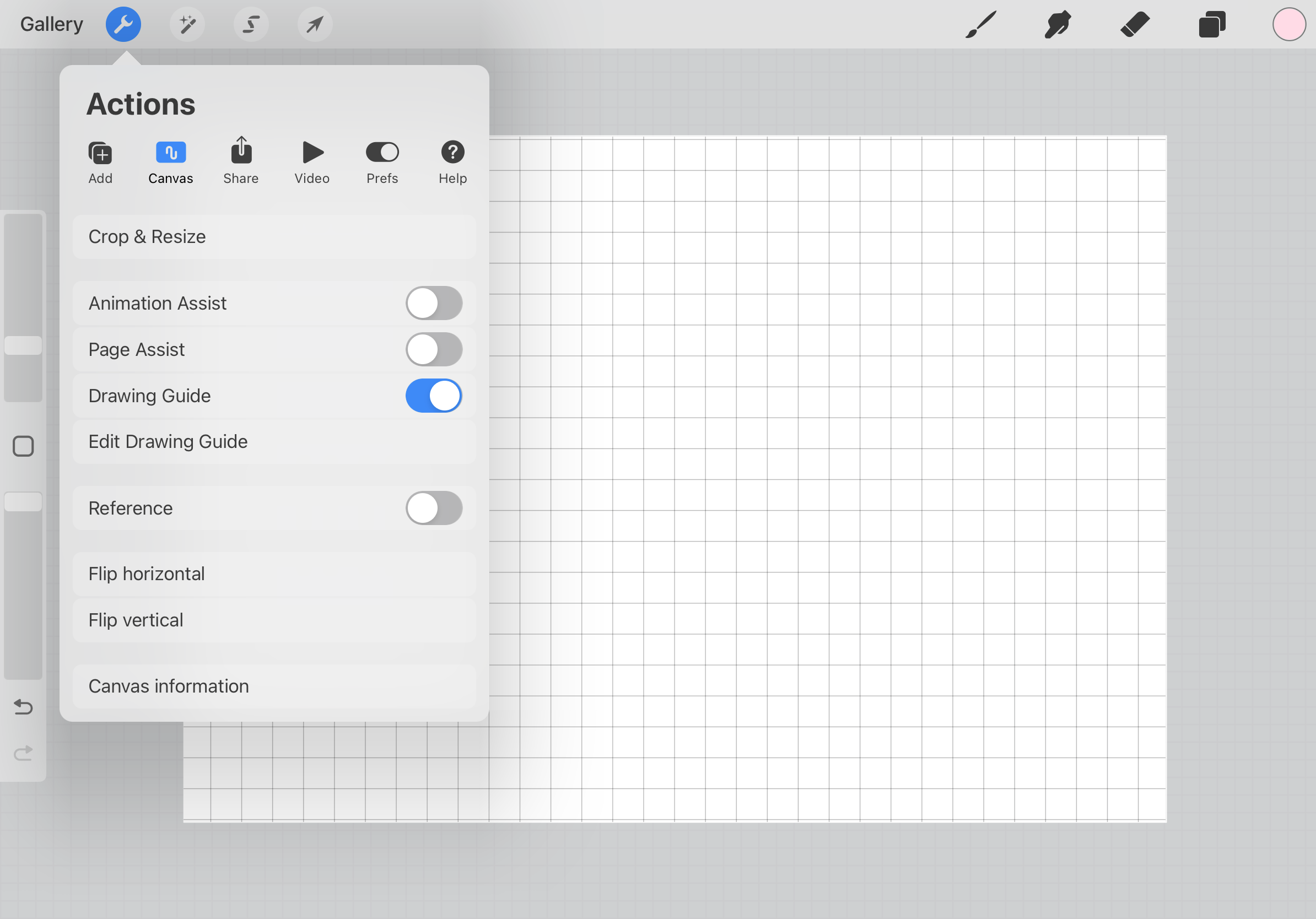 Go to Canvas > Toggle on Drawing Guide > Edit Drawing Guide
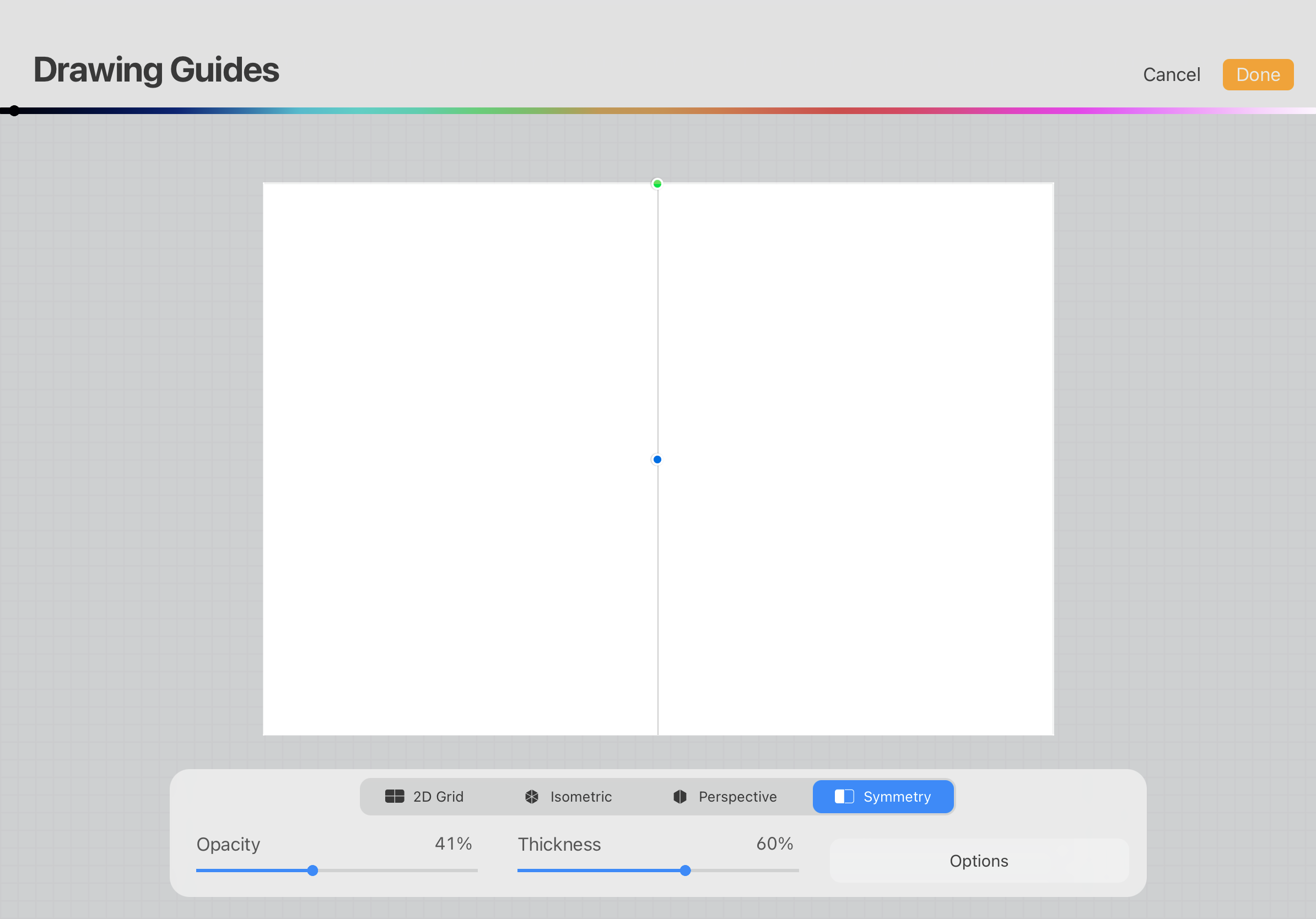 After you click on Edit Drawing Guide, this tool bar will open. Go to Symmetry > Options
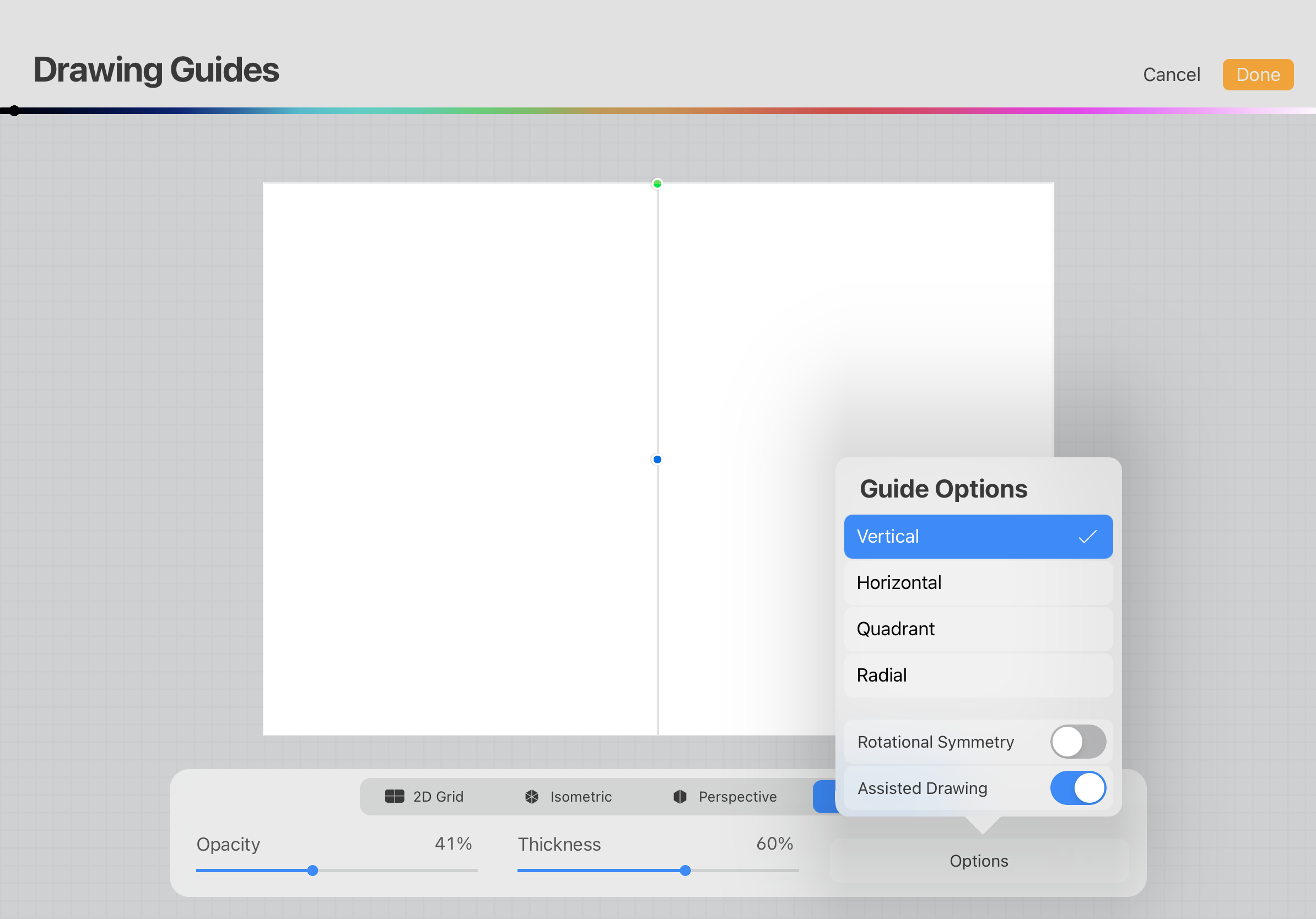
Go to Symmetry > Options > Assisted Drawing > Vertical This will allow you to draw a shape with the symmetry function so that the final shape is perfectly symmetrical.
3. Draw any shape that you want to make into brush. Fill the image with the colour black..
4. Save the image as a JPEG file with a white background.
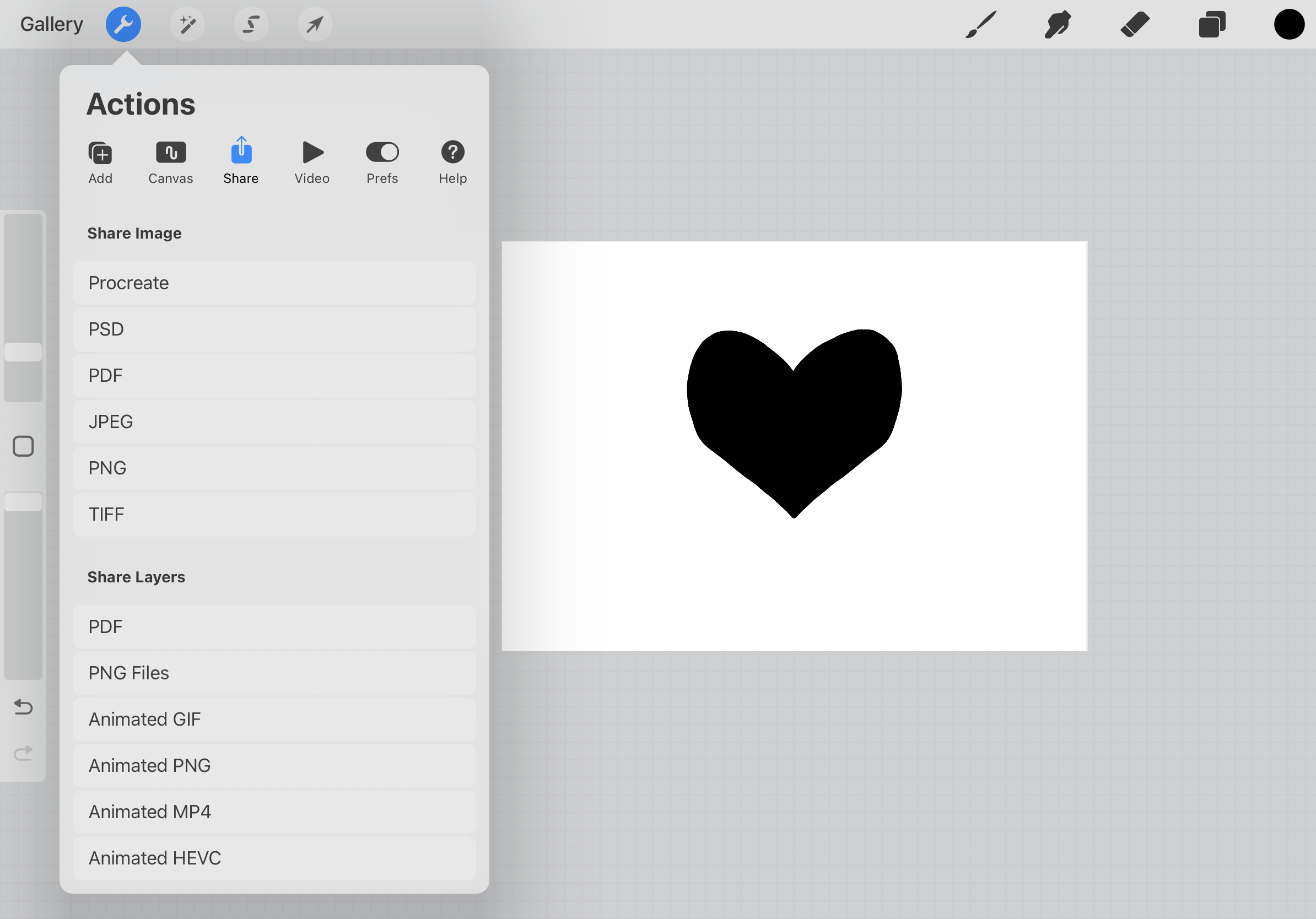 Tap the Wrench icon > Share > JPEG
5. Go to Brushes and select the Stamp brush template that you can download below.
Swipe left to duplicate the brush. We duplicate so that there is always the original file to come back to in case of any mistakes.
6. Then double tap on the duplicated brush so you are in the Brush Studio.
 Tap on Shape. You will see the Shape Source and an Edit button on top. Tap on Edit. You will be brought to the Shape Editor page where you can Import an image.
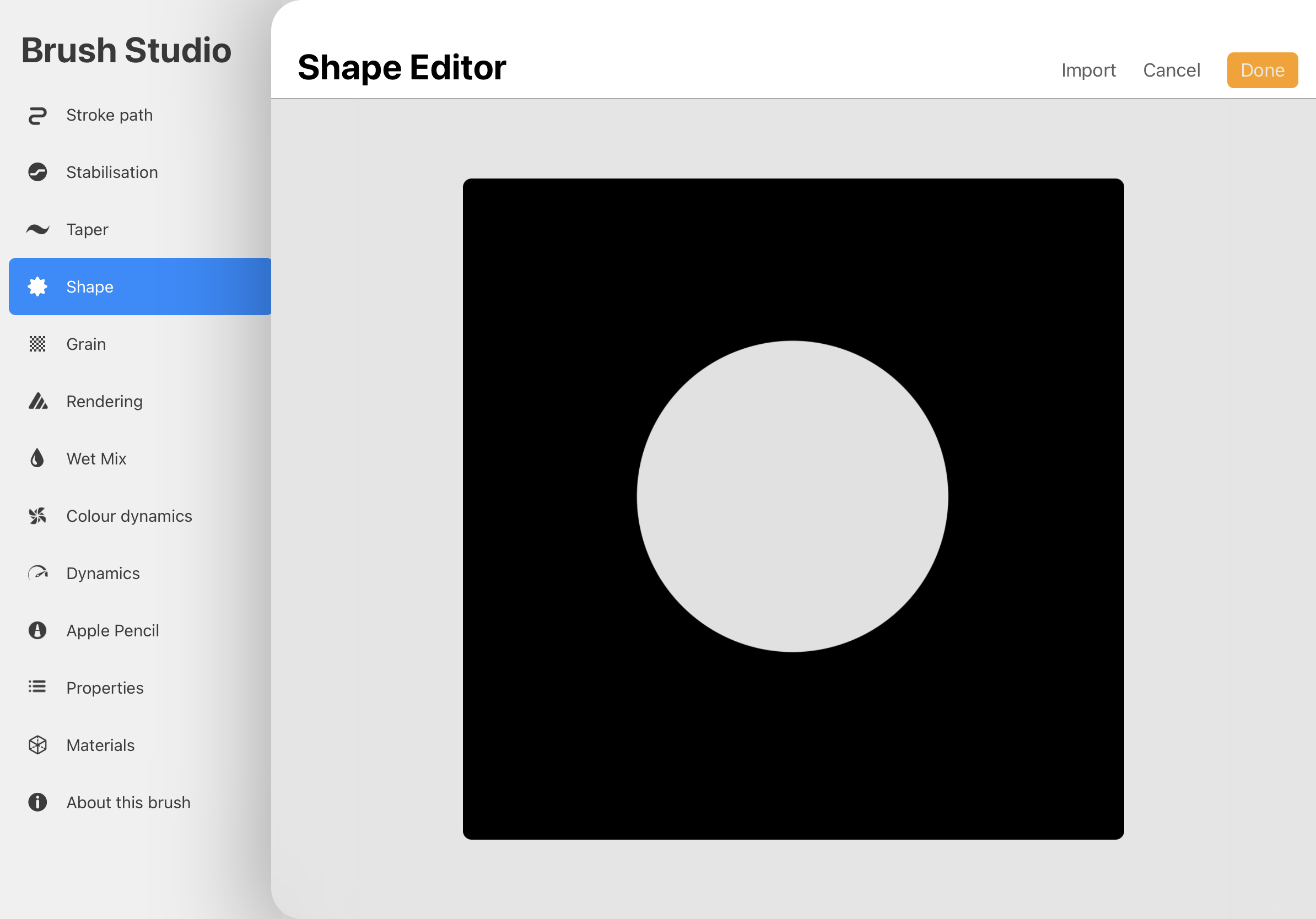 Import the drawing that you just saved.
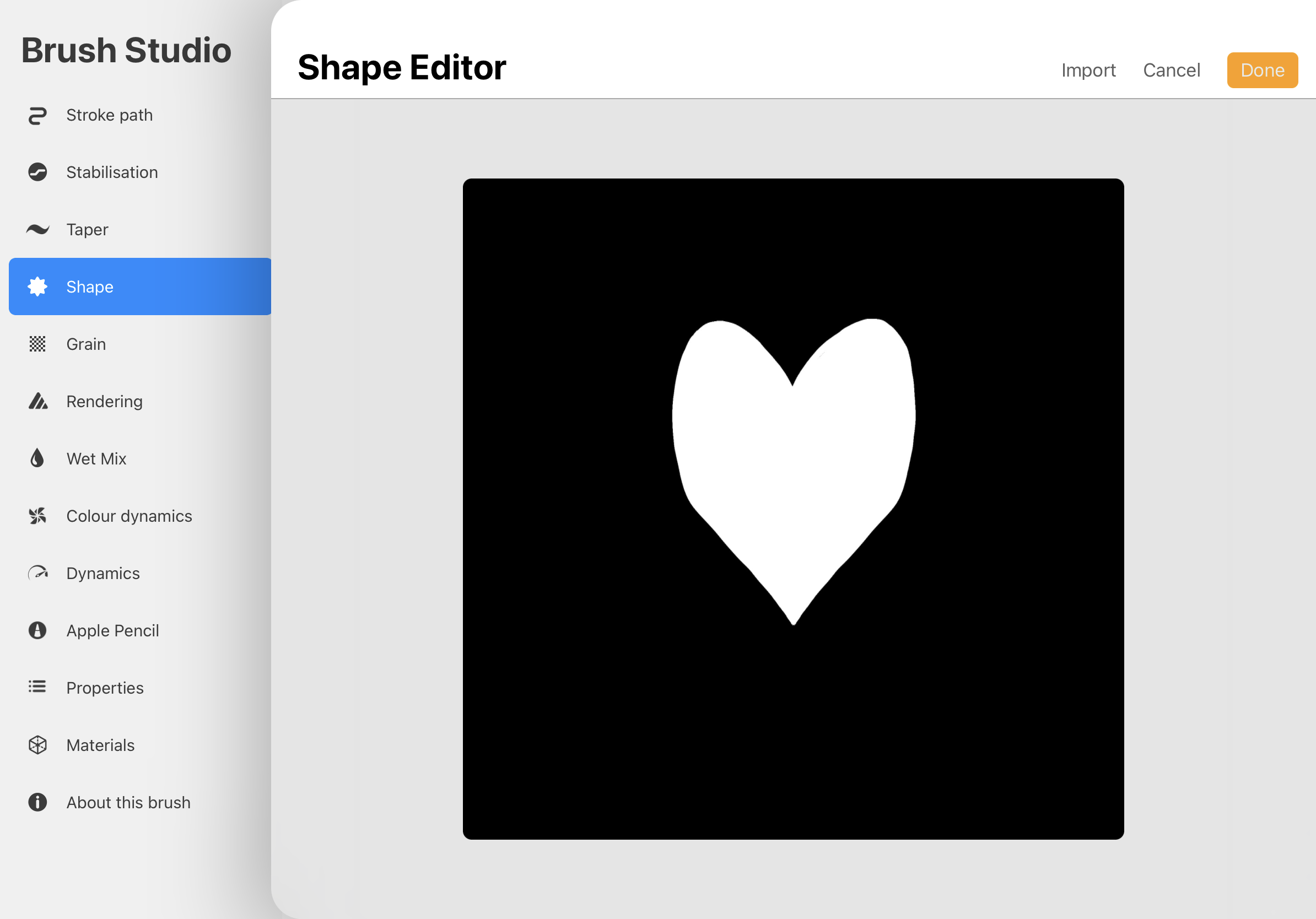 This is the new shape drawing that you have imported. Tap Done.
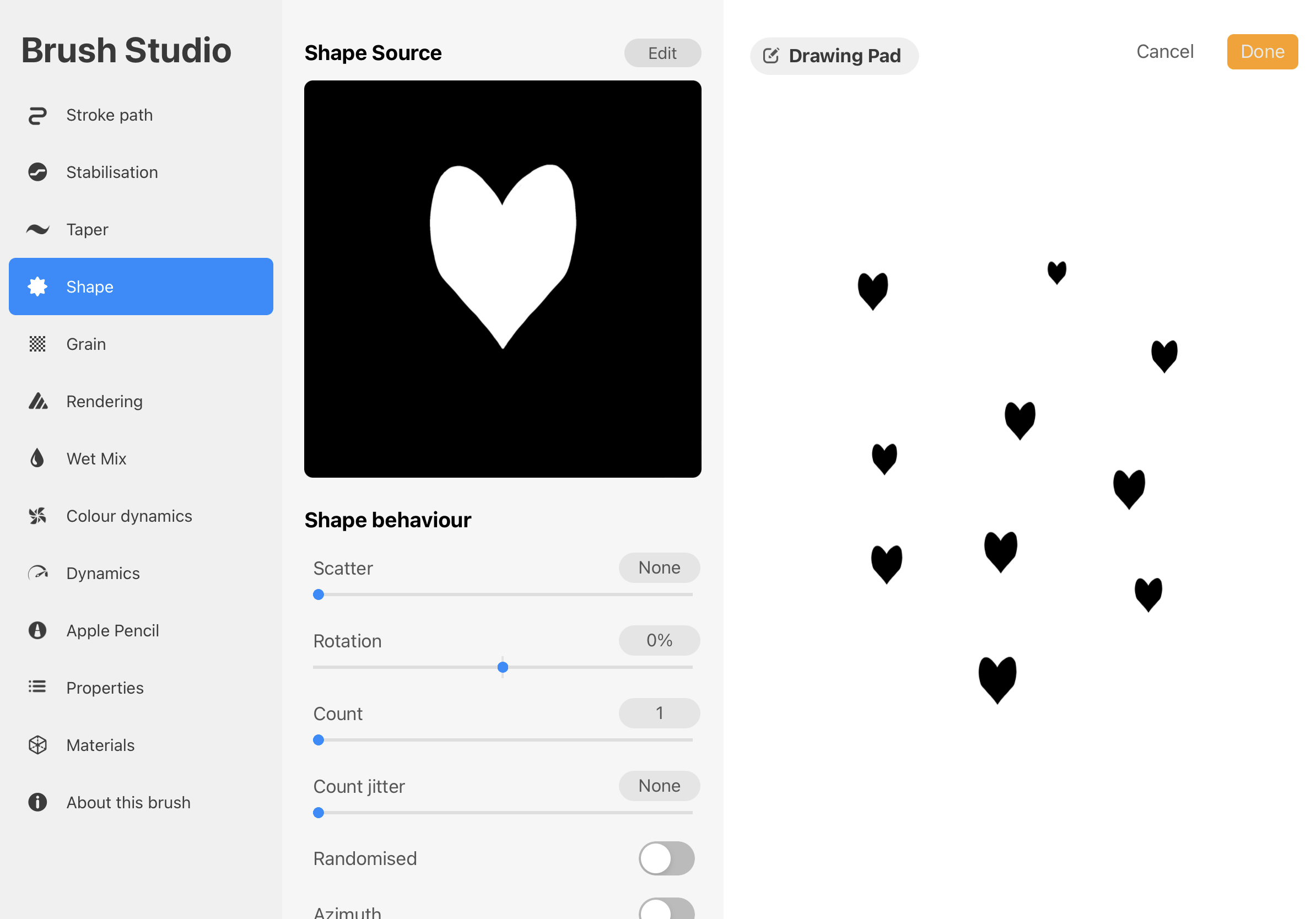 Test the shape brush by tapping your Apple Pencil on the Drawing Pad on the right.
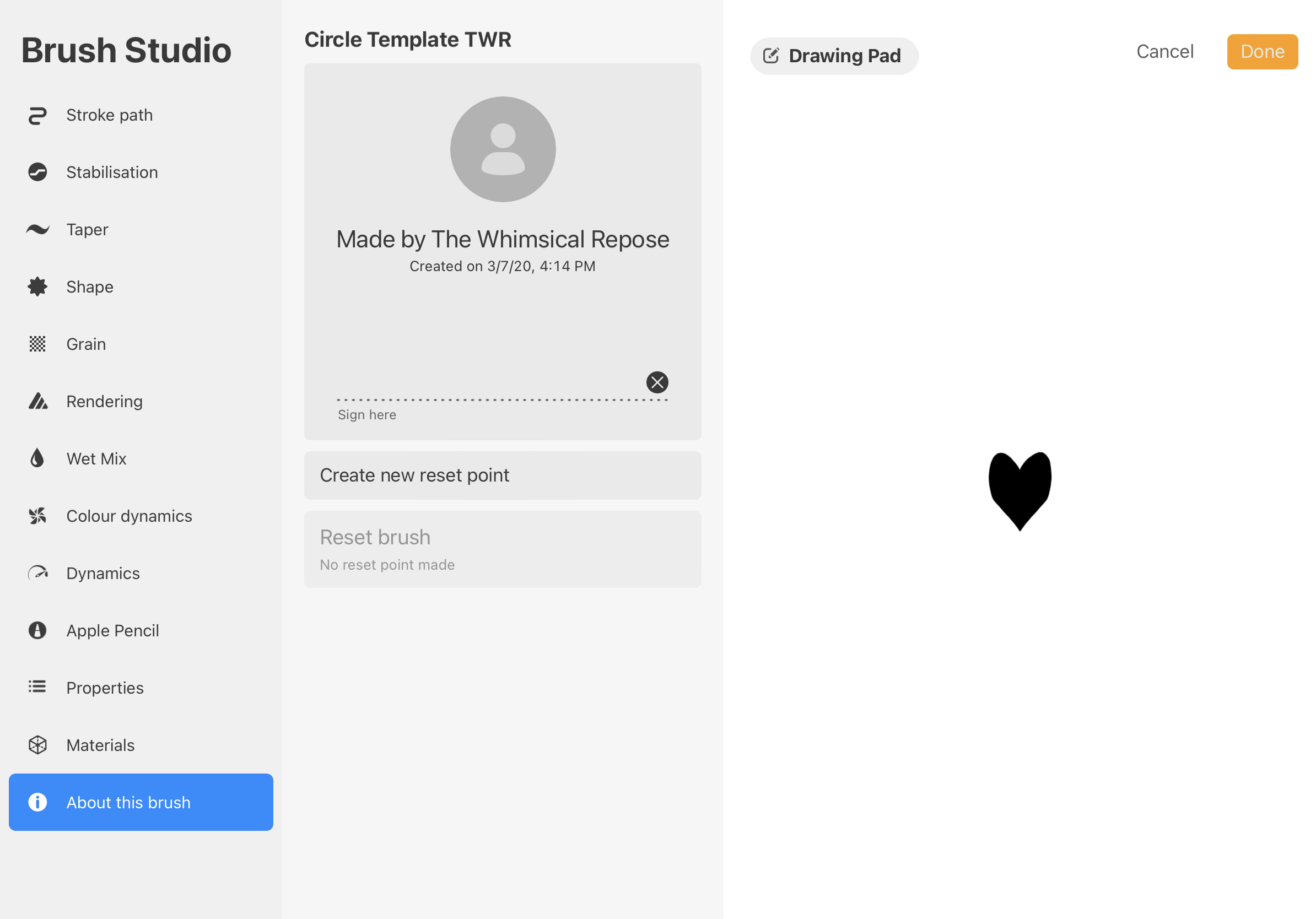 On the left hand side panel, tap About this Brush to change the name of the brush.
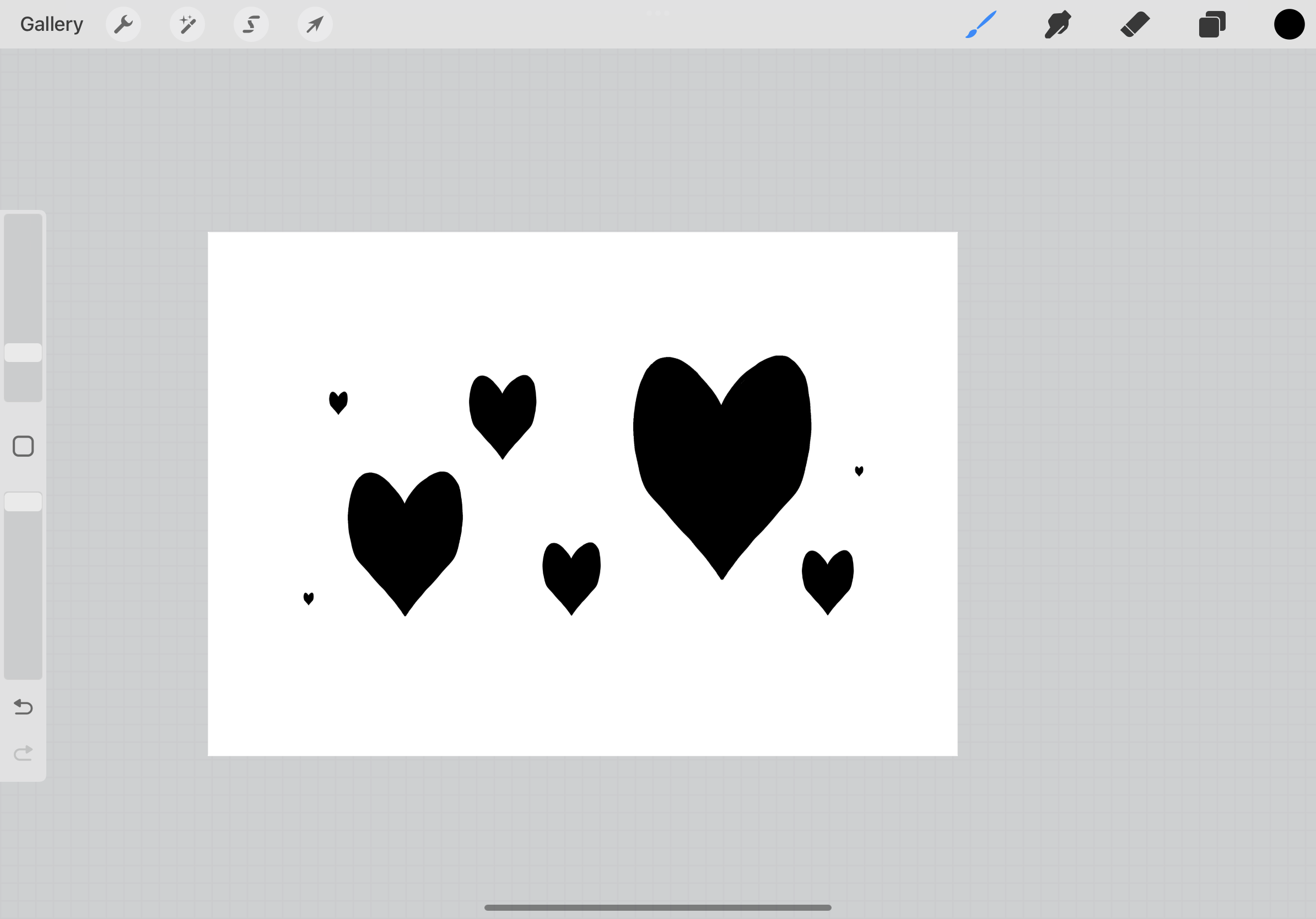 Test the brush on a canvas. You can adjust the brush size with the slider on the left side as per usual.
Download the Stamp Brush Template here with instructions on how you can import it into Procreate.
Happy stamping!